Stamp drawings

Stamp drawings – balloon inspection dimensions automatically instead of by hand

One click turns a PDF or TIFF drawing into a fully stamped inspection template: DrawingStamp Pro detects dimensions, tolerances, GD&T symbols and surface specifications and places sequentially numbered inspection stamps automatically — no re-typing, no missed dimensions.

Basics

What does “stamping a drawing” mean?

Stamping a drawing — also called ballooning — means marking every inspection-relevant feature of a technical drawing with a uniquely numbered stamp (balloon). A design drawing becomes a numbered bill of characteristics that every later inspection refers to unambiguously.

It used to be done by hand — with the infamous hand stamp directly on the paper drawing. That is slow and error-prone: dimensions get missed, numbers get duplicated, and typos creep in when transferring them to the inspection list. With digital, electronic stamping the software handles the numbering — cleanly, completely and editable at any time.

Also known as: ballooning, bubbling, placing inspection stamps, marking inspection dimensions or electronic inspector stamp.

How-to

Stamp a drawing in 3 steps

01

Open the drawing

Load a PDF or TIFF drawing. Vector PDFs are read directly, scanned files are prepared via OCR.

02

Stamp automatically

Let it detect the features — DrawingStamp Pro places the numbered inspection stamps automatically, cleanly positioned and without overlap.

03

Export the inspection plan

Output the stamped drawing and the numbered feature list as PDF and Excel — ready for inspection.
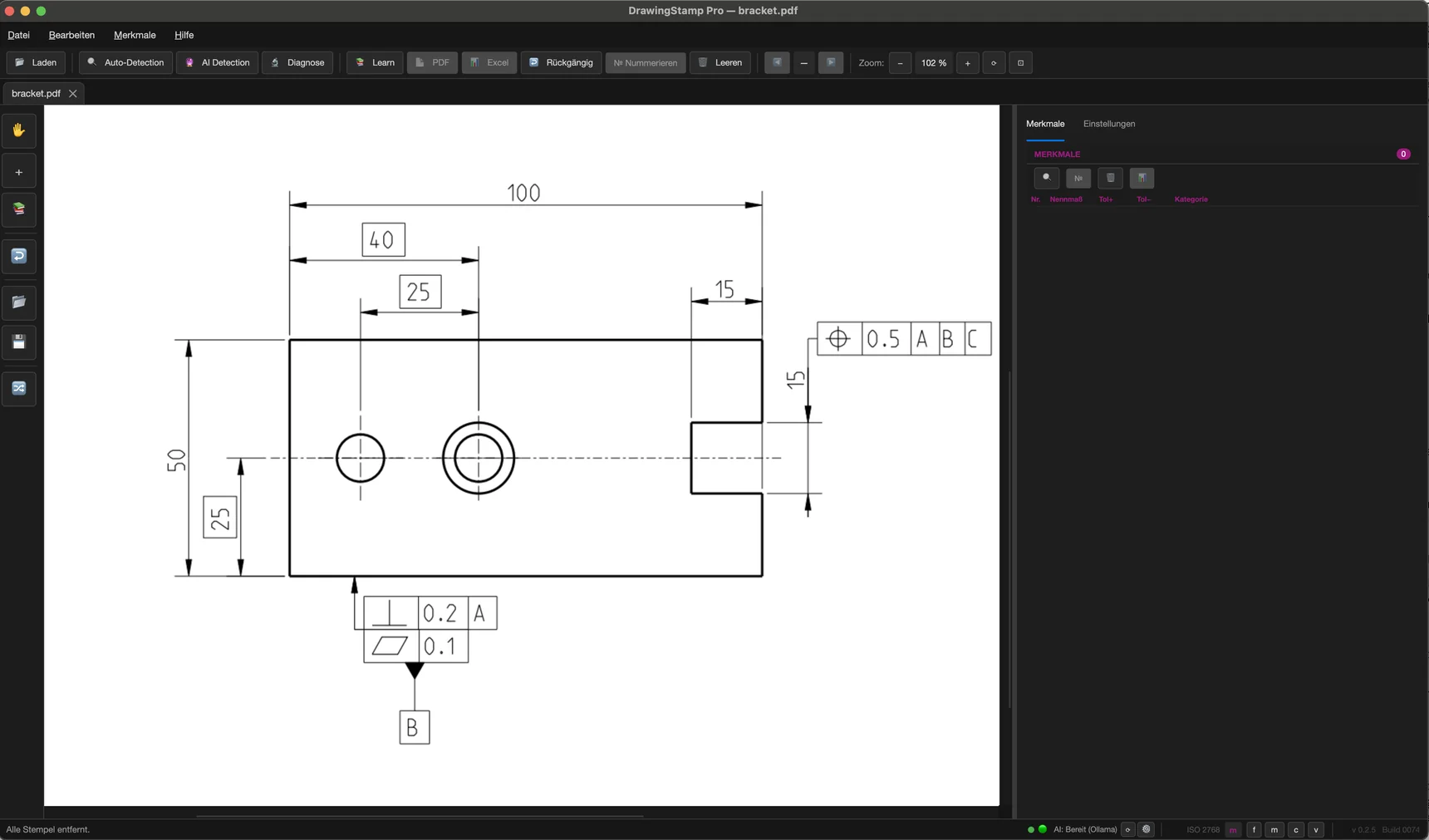
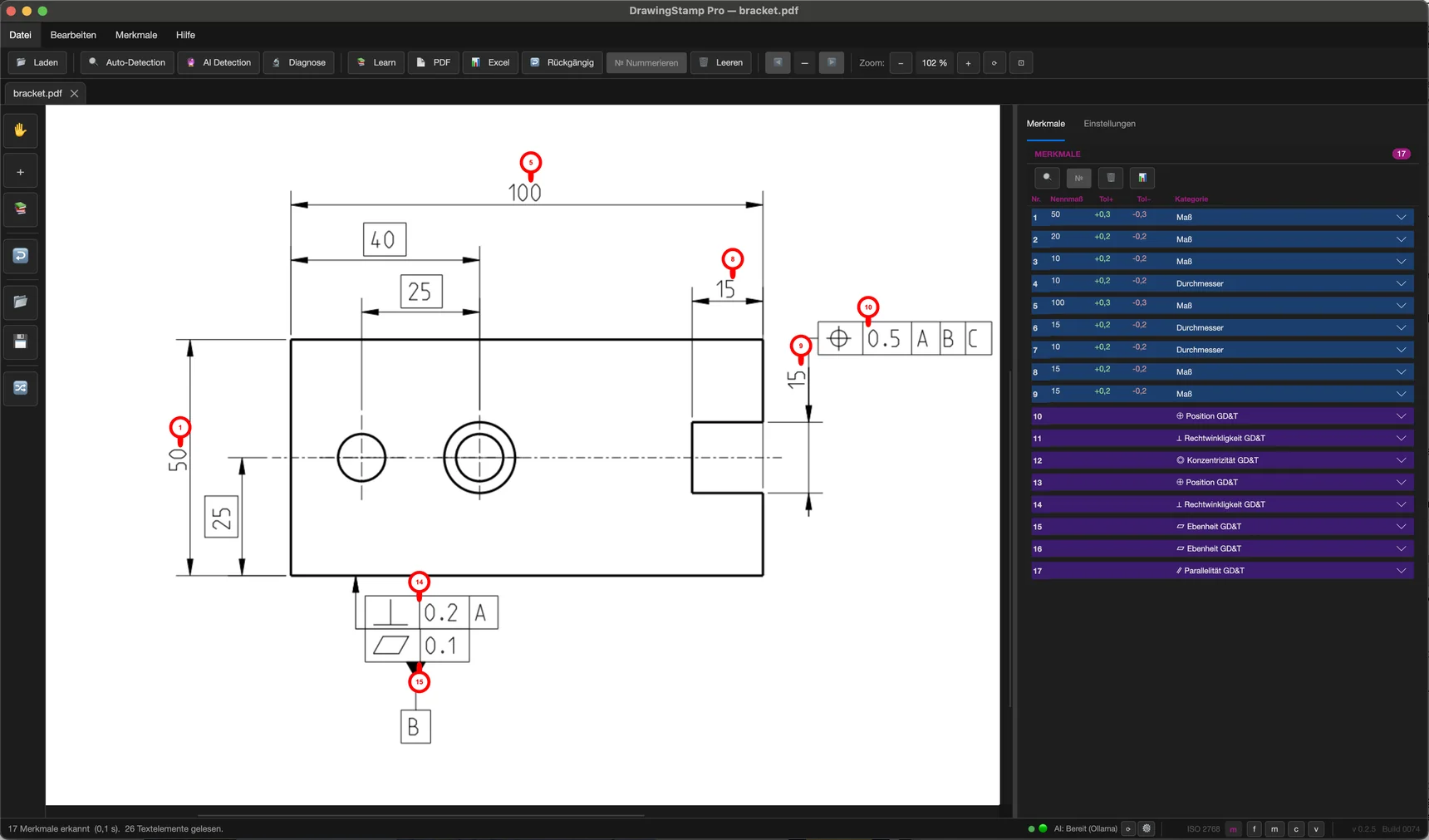
01Before
Technische Zeichnung vor dem Stempeln – ohne Prüfstempel
02After
Dieselbe Zeichnung nach dem automatischen Stempeln – mit nummerierten Prüfstempeln

The same view, one click in between: the raw drawing becomes a fully stamped inspection template.
Detection

What DrawingStamp Pro detects automatically

Not just “some” stamp: DrawingStamp Pro reads the inspection-relevant features from the drawing and stamps them, sequentially numbered.

01

Dimensions & ISO tolerances

Detects dimensions, ISO fits and general tolerances (e.g. ISO 2768) directly in the vector PDF.

02

GD&T – form & position

Captures GD&T symbols and tolerance frames (form and position tolerances per ISO 1101) as individual inspection features.

03

Surface specifications

Roughness and surface specifications are detected and stamped as numbered features too.

04

OCR for scanned drawings

Scanned, pixel-based TIFF and PDF drawings without a text layer are prepared via OCR and ballooned just the same.

05

Rules + AI & ML

Traceable, rule-based pattern recognition at the core — optionally augmented by AI and machine learning for the tricky cases. The AI runs locally by default and calls for correspondingly capable hardware; the rule-based detection does without.

06

Sequential numbering

Every inspection stamp is cleanly placed and sequentially numbered — nothing overlaps, nothing is duplicated.

Formats & export

Formats & export – the honest overview

A clear focus on what matters day to day: PDF and TIFF in, a finished inspection plan out.

Input

  • PDF (vector) – read directly
  • Scanned PDF – prepared by OCR
  • TIFF – prepared by OCR
  • DWG and DXF – imported on opening

Output

  • Ballooned drawing as a PDF
  • Numbered characteristic list
  • Inspection plan as Excel
  • Import into CMM / CAQ

PDF and TIFF are the main focus – ready to go. DWG and DXF files are read on opening; you do not need a CAD program installed for that.

Use case

For First Article Inspection (FAI / PPAP)

Stamped drawings are the basis of First Article Inspection. DrawingStamp Pro numbers the drawing characteristics and delivers the stamped drawing plus feature list — the basis on which inspection planning, first-article and PPAP reports build. On every initial sample submission, this is the step otherwise done by hand. The feature numbering follows common ballooning practice as used around VDA 2, PPAP, ISIR and AS9102.

To be clear: DrawingStamp Pro creates the stamped drawing and the feature data. Filling in specific VDA, PPAP or AS9102 forms is handled by your existing inspection process or CAQ system — DrawingStamp Pro provides the clean, numbered basis for it.

FAI EMPB VDA 2 PPAP ISIR AS9102

FAI report software: the whole path to the inspection report →

Handling ISO 2768 general tolerances in the inspection plan →

More than stamping

Drawing corrections included

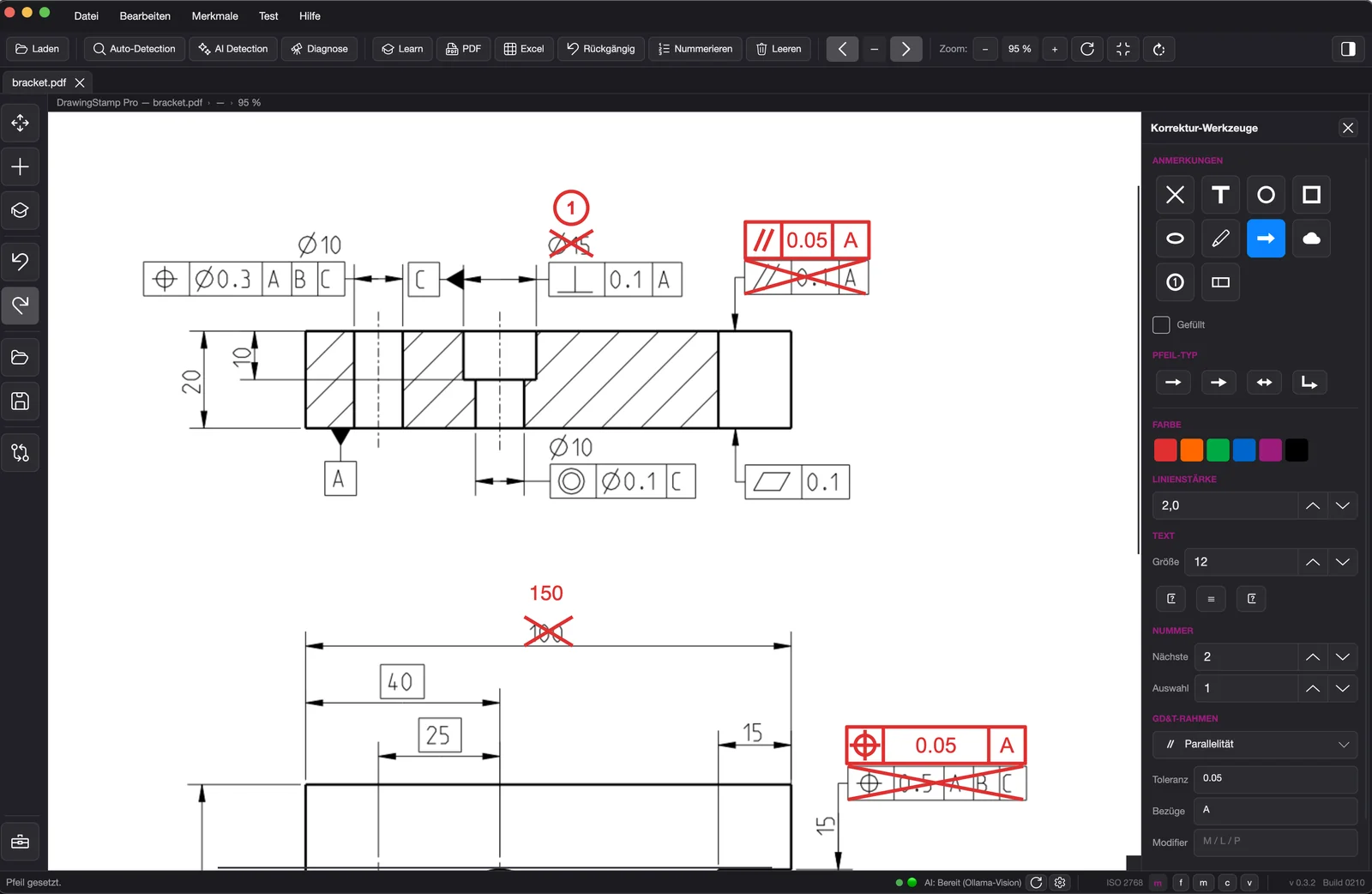
Capture errors and change requests right on the drawing: strike-outs, free text, arrows, shapes, revision clouds and numbered balloons — plus the symbols of the drawing standard itself: GD&T frames, datums, surface finish to ISO 1302, envelope requirement, theoretically exact dimensions, dimension arrows and information stamps. All in red, on their own layer, cleanly separated from the automatic inspection stamps and adjustable any time with undo/redo.

DrawingStamp Pro: technische Zeichnung mit roten Korrektur-Anmerkungen und geöffneter Werkzeugleiste

Correction tools: red annotations on their own layer.

Privacy

Local, offline, privacy-friendly

DrawingStamp Pro is a standalone desktop app for Windows, macOS and Linux and works locally on your machine — without an additional runtime. Detection runs entirely on your machine. The AI is local by default — only if you activate a cloud service with your own key are text excerpts sent there; the drawing itself never is. A local AI model does call for correspondingly capable hardware; stamping and export work without AI just as well.

In short: a modern, cross-platform stamping program with local AI and built-in drawing corrections — no forced cloud.

FAQ

Frequently asked questions about stamping drawings

01

What does “stamping a drawing” mean?

Stamping — also called ballooning — marks every inspection-relevant feature of a technical drawing (dimension, tolerance, GD&T symbol or surface specification) with a uniquely, sequentially numbered stamp or balloon. It used to be done by hand with an inspector’s stamp; today it is done electronically on screen.

02

Can I have a drawing stamped automatically?

Yes. DrawingStamp Pro detects the features in the drawing and places sequentially numbered inspection stamps automatically — you don’t have to click or re-type each dimension.

03

Which files can I stamp?

PDF and TIFF drawings. Vector PDFs are read directly; scanned, pixel-based PDFs and TIFFs without a text layer are prepared via OCR and ballooned as well. DWG and DXF files can be imported too — they are read on opening, with no CAD program installed. Fine-tuning dimensional fidelity for the CAD import is still in progress; PDF and TIFF are the proven route.

04

What does DrawingStamp Pro detect automatically?

Dimensions, ISO tolerances, GD&T symbols (form and position tolerances) and surface specifications. At its core it uses traceable, rule-based pattern recognition, optionally augmented by AI and machine learning for tricky cases.

05

In which format do I get the inspection plan?

You export the finished, numbered inspection plan as PDF and as an Excel file — as the basis for further first-article or incoming inspection.

06

Is it suitable for First Article Inspection (FAI)?

Yes. The result is a numbered feature list as needed for First Article Inspection (FAI). DrawingStamp Pro provides the stamped drawing and the feature data as the basis for your inspection process.

07

Are my drawings uploaded to the cloud?

No. DrawingStamp Pro is a desktop app for Windows, macOS and Linux and works locally on your machine. Detection runs entirely on your machine. The AI is local by default — only if you activate a cloud service with your own key are text excerpts sent there; the drawing itself never is.

08

Is DrawingStamp Pro available yet?

Yes — through the beta programme. The software is in use with real users and updates itself through a built-in update function. Beta 1 is complete; you can sign up for Beta 2. The beta is available for Windows, macOS and Linux.

More questions in the FAQ →

Beta

Be among the first to stamp your drawings.

DrawingStamp Pro is already in daily use with beta users. Request your access and stamp your drawings at the push of a button.